 EcorisMap
CHAPTER 02
The Home Screen
This chapter covers the buttons on the Home screen, which appears when you launch the app, and the basic map operations.
Buttons on the map
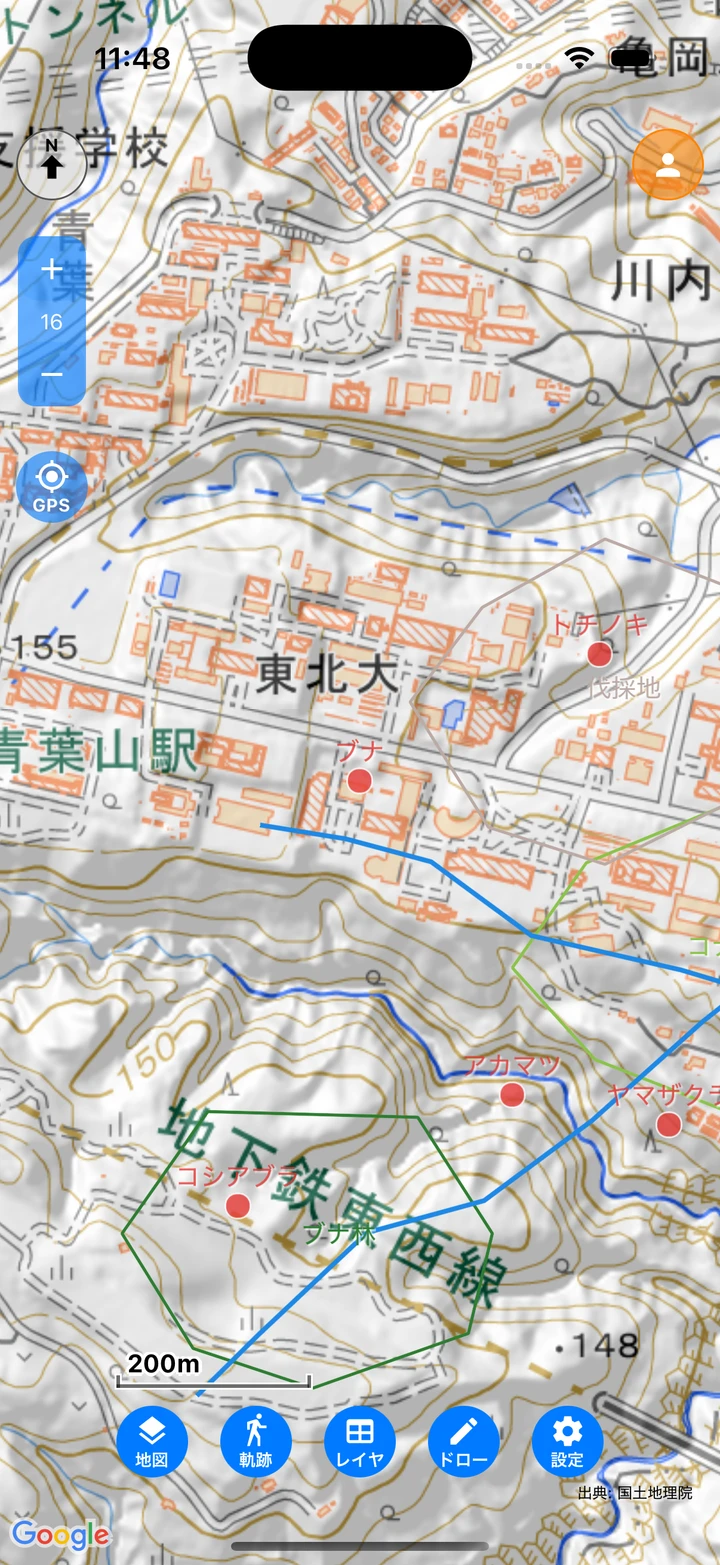
- Compass — Switches between heading-up, which puts your direction of travel at the top, and north-up. Long-press it to toggle a direction line running from your current location toward the bearing direction.
- Zoom — Changes the scale. The current zoom level is shown between the buttons.
- GPS — Toggles current-location display and follow mode. The color shows the state: off = blue / show only = pale red / following = red.
- Account — Located at the top right. Opens the login screen when you are logged out. Signed in with an organization account it opens a menu with “Projects”, “Settings” and “Logout”; connected to Google Drive it opens “Drive” and “Logout” (which disconnects Drive).
In addition, a scale bar is shown at the bottom left and the attribution of the displayed map at the bottom right.
Buttons at the bottom of the screen
- maps — Opens the Map selection screen.
- track — Starts/stops track log recording. Turns red while recording.
- layers — Opens the Layer list screen.
- draw — Chooses the editing tools for points / lines / polygons / memos. Selecting “draw” turns the tools off.
- settings — Opens the Settings screen.
Basic map operations
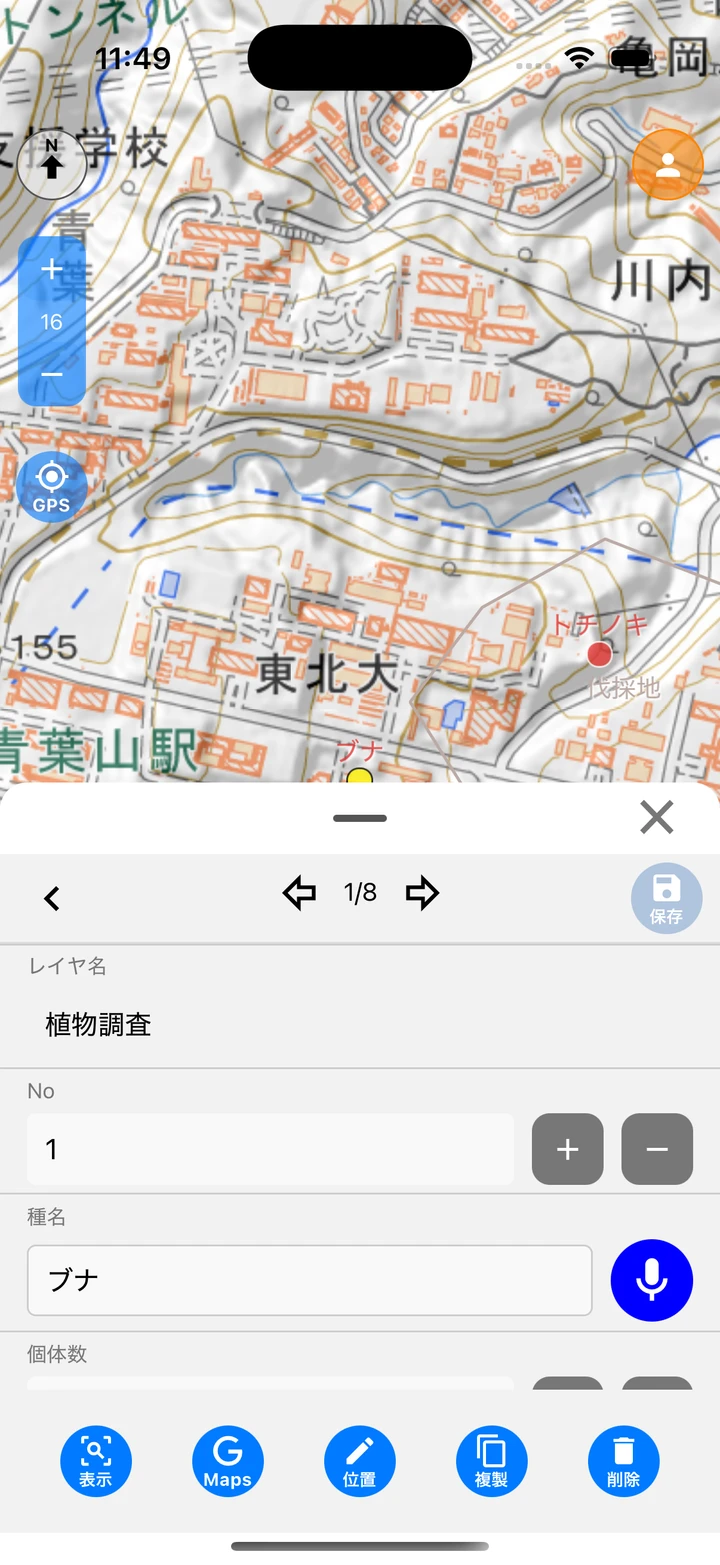
- Drag / pinch — Pans the map and zooms in and out.
- Tap a feature — Shows its attribute information in the sheet at the bottom of the screen. For entering and editing values, see Record Data. Tapping a feature on a vector tile map shows a list of its attributes in a popup instead.
- Long-press — Shows that point’s elevation, coordinates, and distance from your current location in a popup, even where there is no feature, and can open it in Google Maps. Tapping a POI (place or facility name) on a Google map does the same. Tapping the coordinates copies them. The popup can also create a viewshed, the area visible from that spot, or measure a distance.
Note: On first launch you will be asked to agree to the terms of use, and after an app update the release notes are shown.