 EcorisMap
CHAPTER 17
Google Drive Integration
When you connect your Google account, you can save and load your full dataset to and from your own Google Drive. It is a personal storage feature, handy for backups and switching devices.
Connecting your Google account
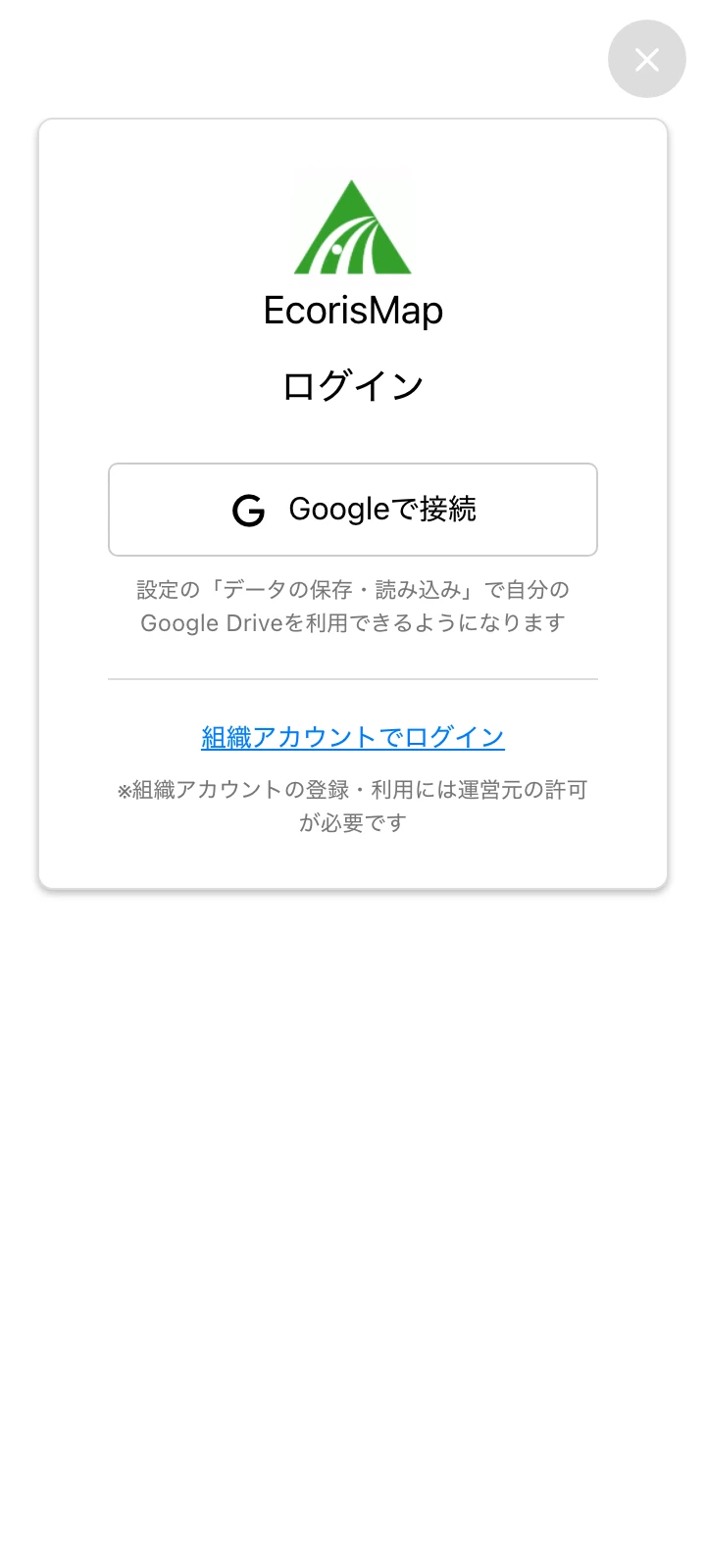
- Open the account menu at the top right of the Home screen. The Login screen appears.
- Choose “Connect with Google” and pick the Google account to use.
- Google’s consent screen appears. Check the “Google Drive” item and continue. You cannot connect without checking it.
Once connected, you can choose Google Drive for “Save data” and “Load data” on the Settings screen.
Saving to Drive
- Choose “Save data” → “Google Drive” on the Settings screen. You can also save with “Save current data to Drive” on the Drive screen.
- Enter a file name and save. The destination is the “My Drive > EcorisMap” folder in Google Drive.
- If a file with the same name exists, an overwrite confirmation appears. Even after overwriting, you can restore the previous contents from Drive’s revision history.
- Saving while a shared project is running does not share anything with the team. It backs up your current data to your personal Google Drive, and a confirmation is shown.
Loading from Drive
- Choose “Load data” → “Google Drive” on the Settings screen.
- The list shows only files saved from EcorisMap in the “My Drive > EcorisMap” folder. Files placed there manually do not appear. Each row shows the file name, update date/time, and size.
- It loads after you confirm “Current data and settings will be overwritten.”.
Managing files (Drive screen)
Open “Drive” from the account menu at the top right of the Home screen to save, load, and also delete files. Deletion asks “Delete this project? (It will be moved to the Drive trash.)”, and the file moves to the Drive trash rather than being erased completely.
- Next to the “Connected: email address” display, there are a reload button for the list and a disconnect button.
- Disconnect — After the confirmation “Disconnect from your Google account?”, disconnects.
Caution: Take good care of your Google account credentials (password and two-factor authentication) and the sharing settings on Drive. EcorisMap can only access the files it created on Drive.